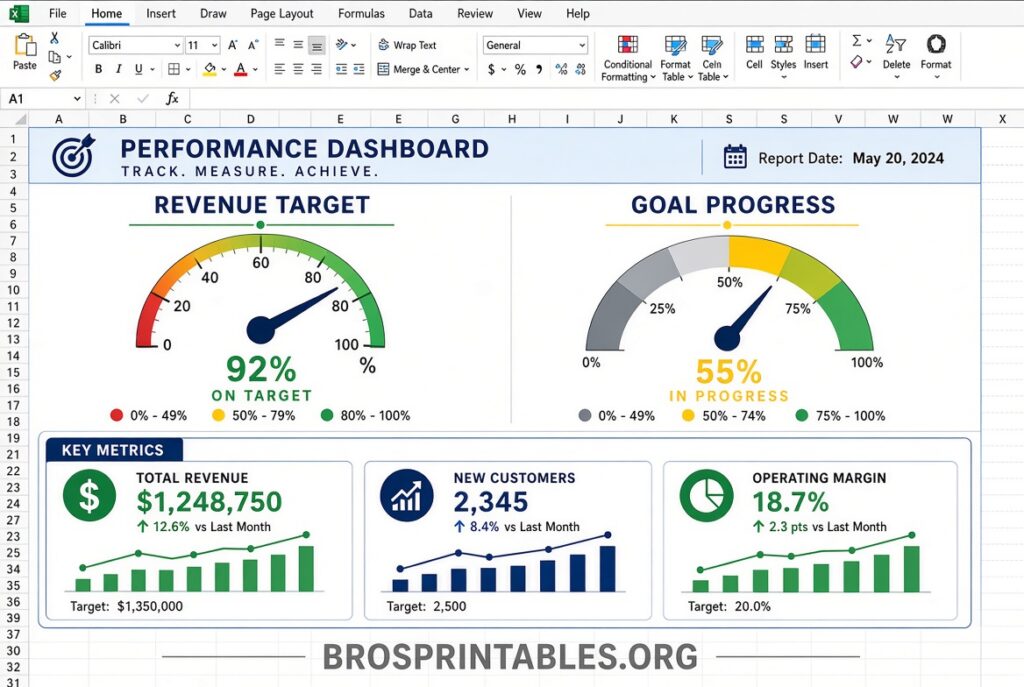
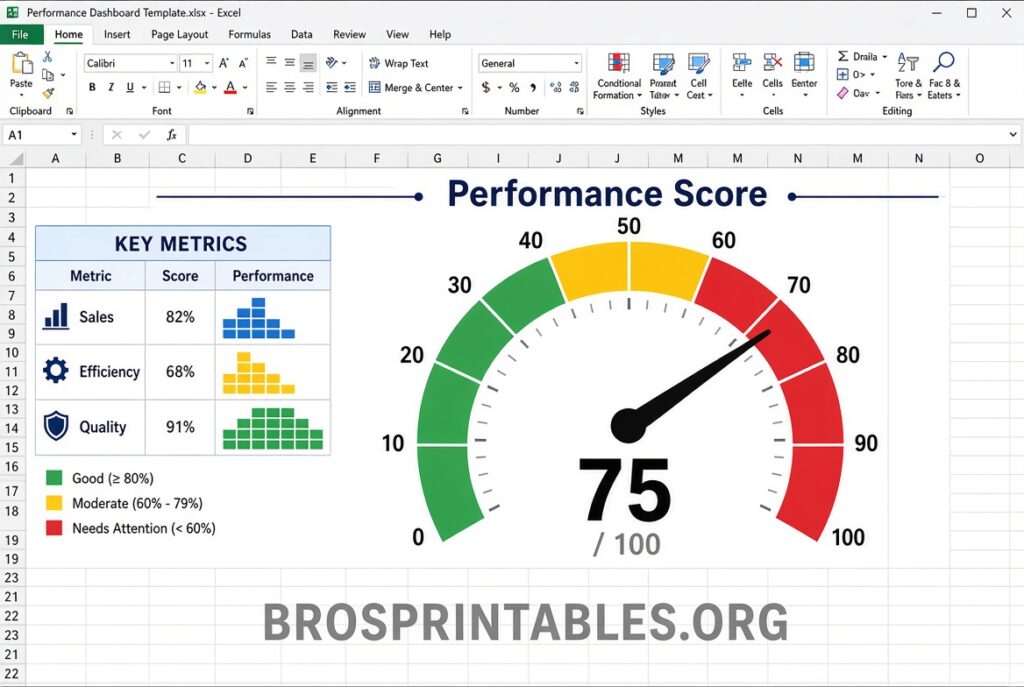
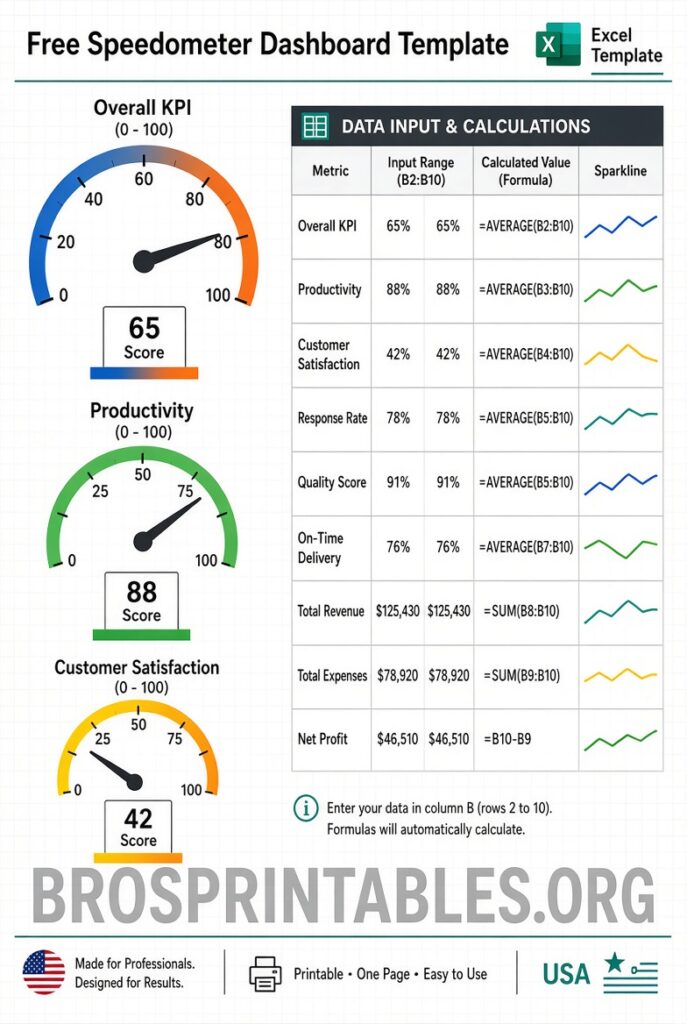
Free Excel Speedometer Dashboard Templates – Looking for free Excel speedometer dashboard templates? These visual tools—also called gauge charts or dial charts—help you track key performance indicators (KPIs) at a glance. They work like a car speedometer: a needle points to a value on a color-coded scale (often red-yellow-green) so you can instantly see if performance is below target, on track, or exceeding goals.
Excel does not include a built-in speedometer chart. Users build them by combining doughnut and pie charts, or they start with ready-made free templates and widgets. This approach is popular for USA business dashboards in sales, operations, project management, and executive reporting because the visuals are clear and require no special software beyond Microsoft Excel.
Why Use Speedometer Charts in Excel Dashboards?
Speedometer (gauge) charts shine when you need to highlight a single metric against a target or qualitative range. Common uses include:
- Sales performance versus quota
- Project completion percentage
- Customer satisfaction scores
- Operational efficiency or capacity utilization
They take up more space than a simple bar or bullet chart, so experts often recommend using them sparingly on a dashboard—typically one or two key metrics—while pairing them with tables or other charts for supporting data. Still, their instant readability makes them a favorite for presentations and live KPI monitoring.
Where to Download Free Excel Speedometer Dashboard Templates?
Here are legitimate, currently available free resources. Always download from the original site and scan files with antivirus software. These options focus on actual free Excel files or add-ins rather than paid tools.
One strong source is Excel Dashboard School’s free dashboard widgets bundle. It includes multiple ready-to-use gauge/speedometer styles (quarter-circle, full circle, semi-circle, and others) plus thermometer and traffic-light widgets. The files are designed for quick customization of ranges, colors, and values. Visit the page and look for the download section for the 4-in-1 widgets and speedometer collection:
https://exceldashboardschool.com/free-dashboard-widgets/
The same site offers a free Excel Gauge Chart Add-in. After installing the lightweight add-in, you can generate and update multiple speedometers directly from the Excel ribbon by linking cells for the actual value and zone boundaries. Download the zip file from the dedicated page:
https://exceldashboardschool.com/gauge-chart-add-in/
(Direct file reference on the page points to a current zip download.)
Spreadsheet Shoppe provides several fully functional free Excel speedometer chart templates (thermometer style, black background, contemporary, and clean simple versions). The needles update based on data input. The templates are available for direct download on the page:
https://www.spreadsheetshoppe.com/speedometer-chart/
Automate Excel offers a free gauge chart template along with a detailed step-by-step tutorial for building your own from doughnut and pie charts. The template lets you experiment with zones and the pointer immediately:
https://www.automateexcel.com/charts/gauge-template/
ExcelMojo also supplies a free downloadable Gauge Chart (Speedometer) template that accompanies clear examples for single-value and multi-zone versions. Use it to follow along while learning the construction method:
https://www.excelmojo.com/gauge-chart-in-excel-speedometer/
These five sources prioritize free, practical Excel files or add-ins from established Excel-focused sites. Avoid random third-party download portals that may bundle malware or require payments after the fact.
How to Customize a Free Speedometer Template?
After downloading:
- Open the file in Excel (most work in recent Microsoft 365, Excel 2016, and later versions).
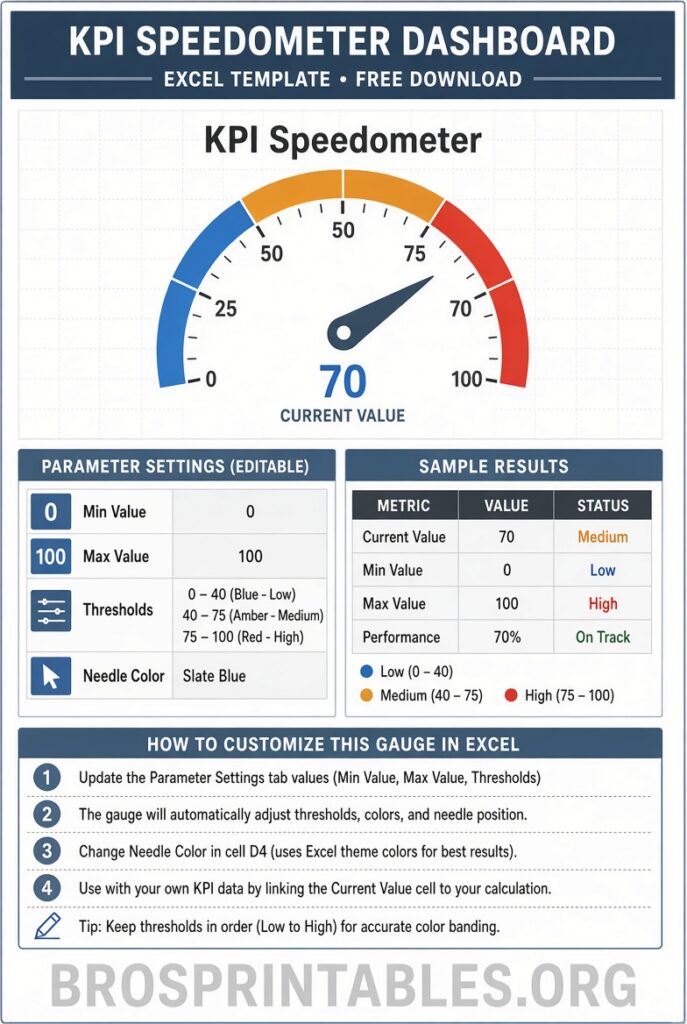
- Locate the input cells—usually highlighted in yellow or orange—for the actual value, minimum/maximum scale, and zone thresholds (for example, 0–40 red, 40–70 yellow, 70–100 green).
- Change the values; the needle or colored fill should update automatically.
- Adjust colors, titles, and labels to match your brand or report style.
- Copy the chart object into your main dashboard worksheet and link it to live data cells if needed.
For advanced users, many templates include notes explaining the underlying doughnut + pie chart construction so you can rebuild or modify the mechanics yourself.
Tips for Effective Use in U.S. Business Dashboards
- Limit gauges to one or two critical KPIs per dashboard page to avoid visual clutter.
- Pair them with actual numbers in text boxes or nearby cells for precise values.
- Test the scale carefully—make sure the maximum value and zones match your real targets.
- Consider accessibility: ensure color contrasts work for color-blind viewers and include numeric labels.
- Update data regularly or connect the template to Power Query / external sources for live reporting.
Brief FAQ
Are free Excel speedometer templates safe?
Stick to the original publisher sites listed above. Download only the Excel or zip files they provide and run a virus scan.
Do these work in Excel for Microsoft 365 and older versions?
Yes for most recent versions. Some older templates (pre-2016) may need minor formatting tweaks. The add-in from Excel Dashboard School is designed for modern Excel.
Can I use these for commercial or client work?
Check each site’s terms. Many free templates allow personal and commercial use with attribution preferred; the add-in pages typically clarify licensing.
Is there a built-in Excel speedometer chart?
No. Excel requires the doughnut-plus-pie method or a third-party add-in/template.
Free Excel speedometer dashboard templates give you a professional, at-a-glance way to display performance metrics without starting from scratch. Download one of the resources above, customize the zones and values, and drop the chart into your next sales, operations, or executive report. With a few minutes of setup, you’ll have clear visual KPIs ready for any U.S. business audience.