Free Swim Lane Diagram Template Visio – Looking for a free swim lane diagram template for Visio? Swim lane diagrams (also called cross-functional flowcharts) clearly show process steps, handoffs, and responsibilities across departments, roles, or teams. Microsoft Visio includes a built-in Cross-Functional Flowchart template that works as a ready-to-use swim lane starting point for USA business users, project managers, and process analysts.
This resource page explains what these diagrams are, how to access legitimate free options in Visio, and practical steps to create or customize one. All recommendations point to official or clearly free resources—no invented downloads or paid-only claims.
What Is a Swim Lane Diagram in Visio?
A swim lane diagram organizes a process into parallel “lanes.” Each lane represents a person, team, department, or system. Process steps sit inside the correct lane, and connectors show the flow and handoffs between lanes.
Visio calls this a Cross-Functional Flowchart. It uses the same basic flowchart shapes as a standard flowchart but adds swimlane containers so ownership is immediately visible. Horizontal or vertical orientations are available. These diagrams help teams in the United States map approval workflows, order fulfillment, onboarding, customer service processes, and more.
How to Get the Free Built-In Swim Lane Template in Visio?
The most reliable free swim lane diagram template for Visio is the one included with the software itself.
- Open Microsoft Visio (desktop or Visio for the web with a supported plan).
- Go to File > New.
- Select the Flowchart category.
- Choose Cross-Functional Flowchart and click Create.
- Select horizontal or vertical orientation if prompted.
The template opens with swimlanes already on the page. You can immediately add, rename, resize, or rearrange lanes and drop process shapes into them.
Official step-by-step instructions are available on Microsoft Support: Create a cross-functional flowchart.
Note: Full cross-functional flowchart features in Visio for the web generally require Visio Plan 1 or Plan 2. Visio in Microsoft 365 has more limited diagramming options.
Free Sample Swim Lane Diagram from Microsoft
Microsoft provides free working files from an older Visio training series that include a swim lane example. These .vsd files can serve as a starting reference or practice diagram.
Download the files (including MVPSession19SwimlaneDiagram.vsd) from the official Microsoft Download Center: MVP Session 19: Create Flowcharts and Swim Lane Diagrams in Visio 2010 (working files).
Open the swim lane file in a current version of Visio. Compatibility is generally good for viewing and basic editing, though some features may differ from modern templates.
Free Third-Party Visio Swim Lane Example
One independent site offers a free, downloadable Visio (.vsd) file created as a tutorial example. It demonstrates a completed manual swim lane diagram that you can open, study, or adapt.
Visit the tutorial page and use the provided free Visio download link: How to make swimlane diagrams in Visio | Free template.
Always download only from the source page and scan files with your antivirus software.
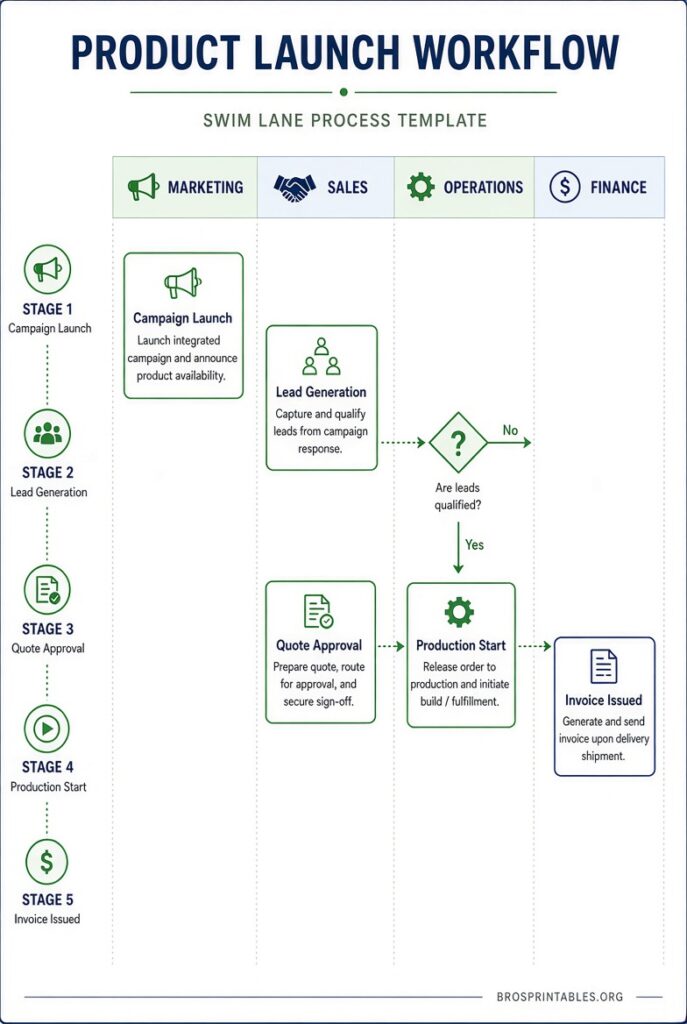
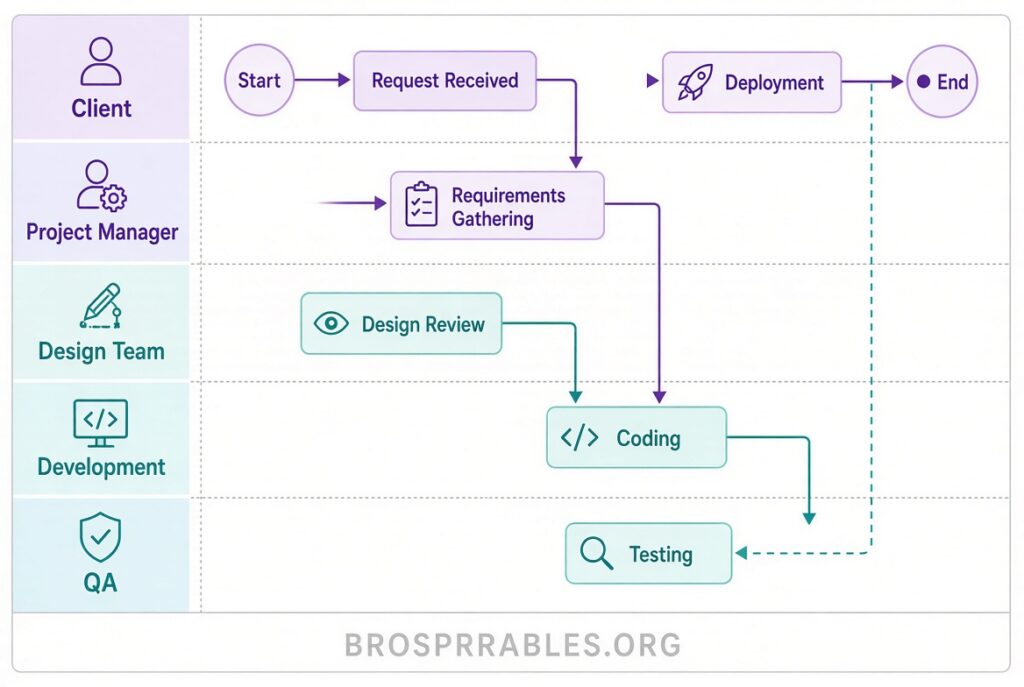
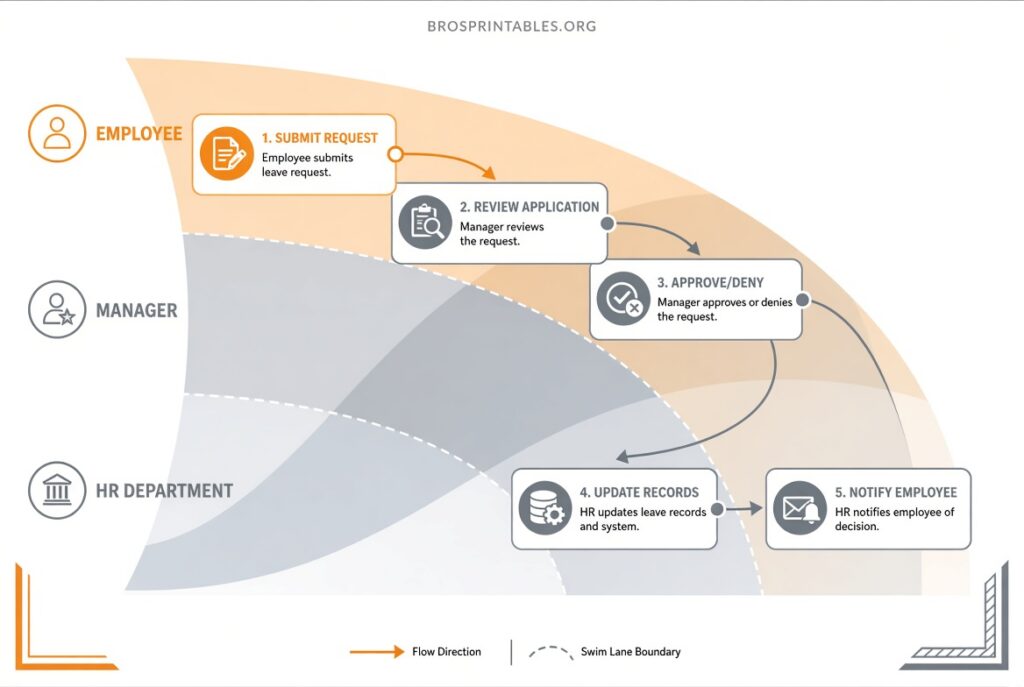
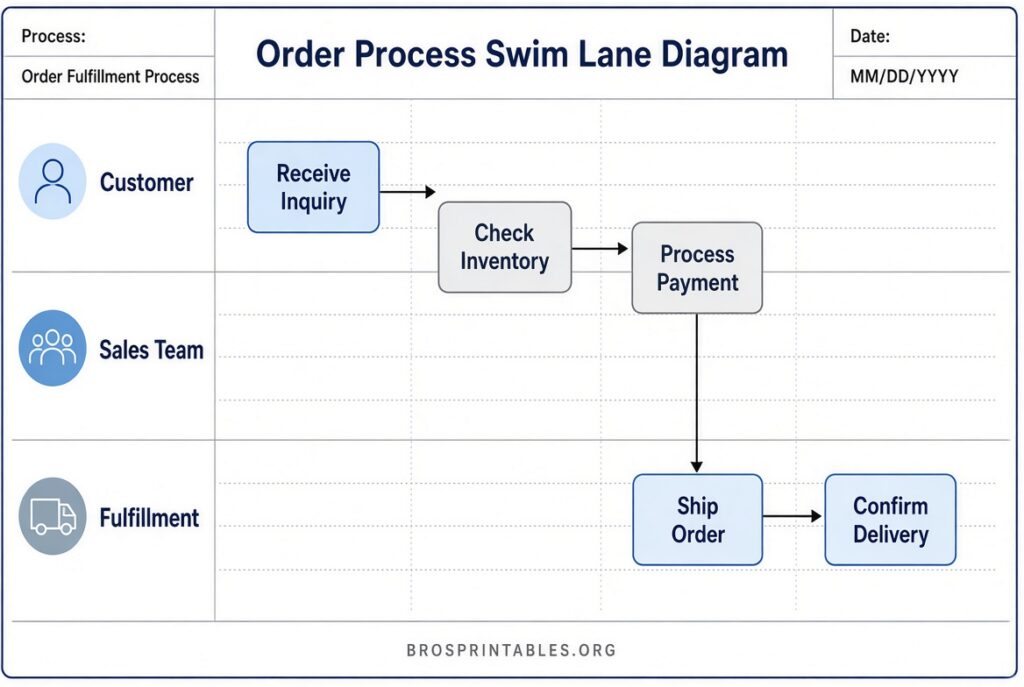
Free Swim Lane Diagram Template Visio
How to Customize Your Free Swim Lane Diagram Template?
Once you have the Cross-Functional Flowchart open:
- Add swimlanes by right-clicking a lane header and choosing Insert Swimlane Before/After, or by dragging Swimlane shapes from the Cross-Functional Flowchart Shapes stencil.
- Rename lanes by double-clicking the header.
- Drag process shapes (Process, Decision, Start/End, etc.) into the correct lane. A green highlight confirms the shape is contained.
- Connect shapes with AutoConnect arrows or the Connector tool.
- Adjust lane width by dragging separator lines.
- Add phases/separators if your process has clear stages.
- Apply themes and formatting from the Design tab for a professional look.
- Print or export to PDF when ready for sharing or physical use.
Microsoft also offers guidance on adding and managing swimlanes: Add swimlanes to a flowchart.
Viewing Visio Files Without a Full License
If you only need to open or print an existing .vsd or .vsdx file, Microsoft provides a free Visio Viewer option and browser-based viewing for files stored in OneDrive or SharePoint. Details are on the official Visio Viewer page: Microsoft Visio Viewer.
Tips for Effective Swim Lane Diagrams
Keep lanes focused on clear owners (avoid overcrowding). Limit the number of lanes so the diagram stays readable when printed or presented. Use consistent shape sizes and clear decision labels (Yes/No). Start with the built-in template rather than building lanes from scratch—this saves time and ensures proper containment behavior.
FAQ
Is there a completely free standalone Visio swim lane template download?
The built-in Cross-Functional Flowchart is free with any Visio license that includes it. Microsoft also offers the older sample files linked above. Standalone free .vsd files from reputable tutorial sites exist but are examples rather than official product templates.
Can I use the template in Visio for the web?
Yes, with Visio Plan 1 or Plan 2. Availability can differ from the desktop app.
Are these templates printable?
Yes. Once customized in Visio, you can print directly or export to PDF for high-quality printing.
Do I need Visio Professional?
The Cross-Functional Flowchart template is available in multiple Visio editions and plans. Check your specific version’s feature list if you encounter limitations.
Start with the official Microsoft Cross-Functional Flowchart template for the most reliable free swim lane diagram experience in Visio. Combine it with the sample files when you want a concrete example to examine or modify. These resources give USA users a practical, no-cost path to clear process visualization.