Free Bitmoji Classroom Templates – Bitmoji classroom templates remain a popular way for U.S. teachers to create engaging virtual or hybrid learning spaces. These customizable Google Slides or PowerPoint backgrounds feature a personalized Bitmoji avatar in a classroom scene complete with desks, boards, shelves, and clickable links. They help students feel connected, organize daily agendas, and link directly to assignments or resources.
Many free options exist from teacher creators and education platforms. This guide explains what they are, how to get started, and where to find legitimate free templates you can download or copy today.
What Are Bitmoji Classroom Templates?
A Bitmoji classroom is a digital scene built in Google Slides (or PowerPoint) that looks like a real classroom. You place your own Bitmoji avatar inside it, add furniture and décor as images, and often hyperlink items so students can click a book, whiteboard, or poster to open an assignment, video, or website.
Teachers use them for morning meetings, choice boards, virtual open houses, subject-specific hubs, or simple visual agendas. They work especially well with Google Classroom, which is widely used in U.S. public and private schools. Templates save hours of design time because the background and basic layout are already done.
How to Create Your Bitmoji Avatar?
You need a free Bitmoji account before you can personalize any template.
- Download the free Bitmoji app on your phone (iOS or Android) or visit bitmoji.com and sign up.
- Create and customize your avatar (face, hair, clothing, etc.).
- Install the official Bitmoji Chrome extension so you can easily copy stickers into Google Slides: Bitmoji Chrome Extension.
Once the extension is active, you can search poses (sitting, waving, pointing) and drag or paste your avatar into any slide.
Where to Find Free Bitmoji Classroom Templates?
Here are trusted, currently free sources. Always make a copy of Google Slides files rather than editing the original.
Otus free classroom backgrounds
Otus offers several ready-to-use background images (Dreamy Blue, Fall Feels, Traditional Teal, Powerful Purple). Right-click to save the images, then insert them as slide backgrounds in Google Slides and add your Bitmoji. Full details and images are available here: Free Bitmoji Classroom Templates from Otus.
Teachers Pay Teachers free templates
TPT hosts many free (and paid) options from classroom teachers. Two solid free starting points:
- A simple virtual classroom background available in both Google Slides and PowerPoint formats: Bitmoji & Virtual Classroom Template – FREE.
- Free Bitmoji library-style templates (multiple rooms you can explore and copy): Free Bitmoji Classroom Templates by Rachel Lemansky.
Search “Bitmoji classroom free” on Teachers Pay Teachers and filter by price $0 to see additional options. Most require a free TPT account to download.
Teachaboo free templates and tutorial
This education site shares multiple themed Bitmoji classrooms (reading, arcade, mindfulness, phonics, etc.) plus clear instructions on how to share a “copy” link so others can use the template without changing the original: Bitmoji Classroom Templates and FREE Tutorial on Teachaboo.
These sources provide direct access to free files or images. Avoid sites that require payment or unclear downloads when the resource is advertised as free.
Free Bitmoji Classroom Templates
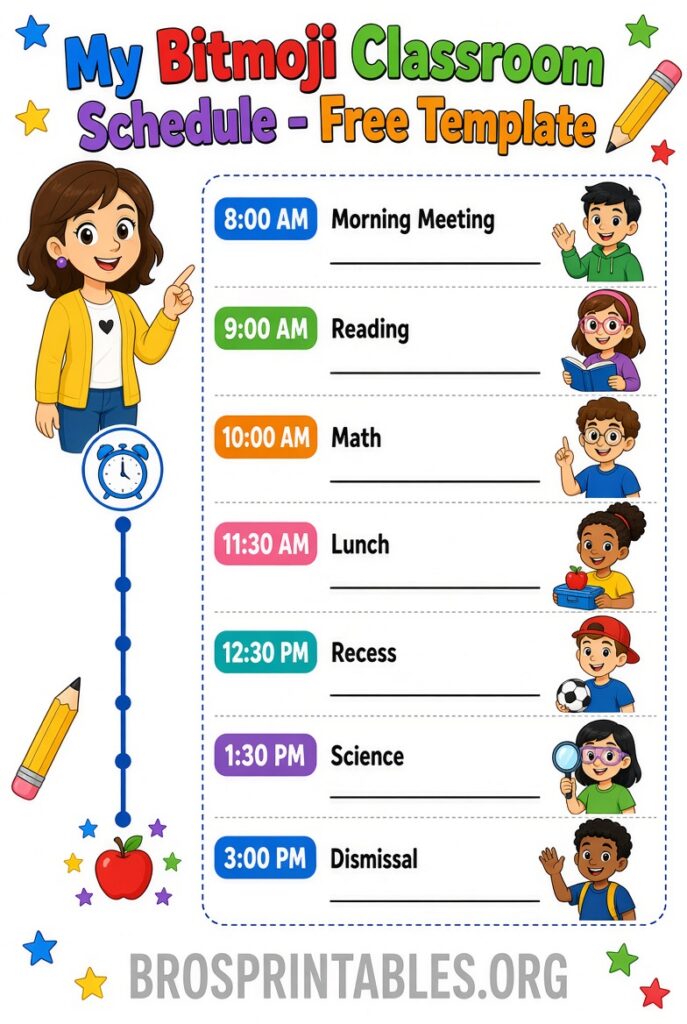
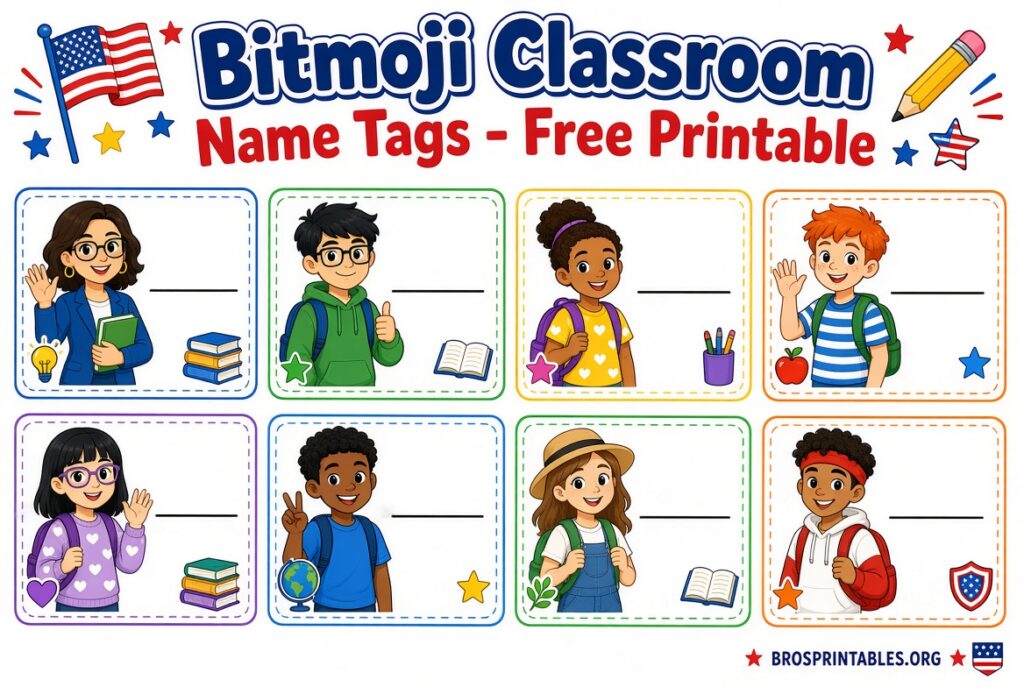
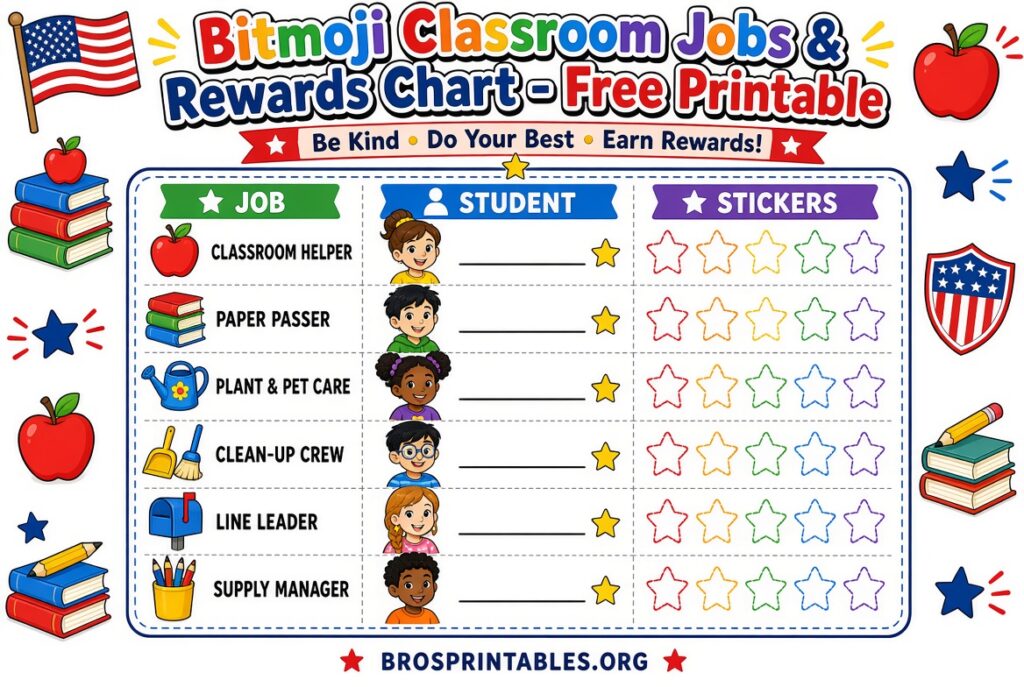
How to Customize a Free Template?
- Open the Google Slides link and select File → Make a copy.
- Set the template image as the slide background (right-click the slide → Change background → Choose image).
- Use the Bitmoji extension to insert your avatar and resize it.
- Add text boxes for the daily agenda, greetings, or instructions.
- Hyperlink objects: select an image or shape → Insert link → paste the URL to an assignment, Google Form, or video.
- Optional: lock the background by taking a screenshot of the finished room and re-inserting it as a non-editable background so students cannot move items.
Keep the design simple so students can quickly find what they need.
Practical Tips for U.S. Classrooms
- Pair the template with Google Classroom topics or materials for seamless navigation.
- Create seasonal or subject-specific versions (fall, winter, math corner, reading nook).
- Test all hyperlinks on a student device before sharing.
- Use high-contrast text and clear labels for accessibility.
- Update the room weekly so it stays relevant.
Many teachers report higher student engagement when the virtual space feels personal and organized.
Brief FAQ
Are these templates really free?
Yes. The linked Otus backgrounds, the specific TPT products listed above, and the Teachaboo resources are free to download or copy for personal classroom use. Always check the product description for any usage notes.
Do I need Google Slides?
Google Slides is the most common format and works well with Google Classroom. Some templates also come in PowerPoint.
Can I use them for in-person classes?
Absolutely. Many teachers project the classroom on a screen for morning meetings or display a simplified version on classroom websites.
Is the Bitmoji Chrome extension still available?
Yes. You can add the official extension from the Chrome Web Store link provided earlier.
Free Bitmoji classroom templates give teachers a fast, creative way to personalize digital learning spaces. Start with one of the free resources above, add your avatar, and customize it for your students. Your class will appreciate the welcoming, interactive environment.